This module can be accessed by clicking the Inspection Schedule / 6 Year Programme link under Inspections on the Actions Menu.
The grid includes the previous 6 years, current year and future 6 years inspections.

The inspection icons are colour coded by inspection type.
The inspection status is then shown as a dot at the bottom left of the icon.
If a cell has an icon followed by a number, then more than one inspection is due for that structure in that year.

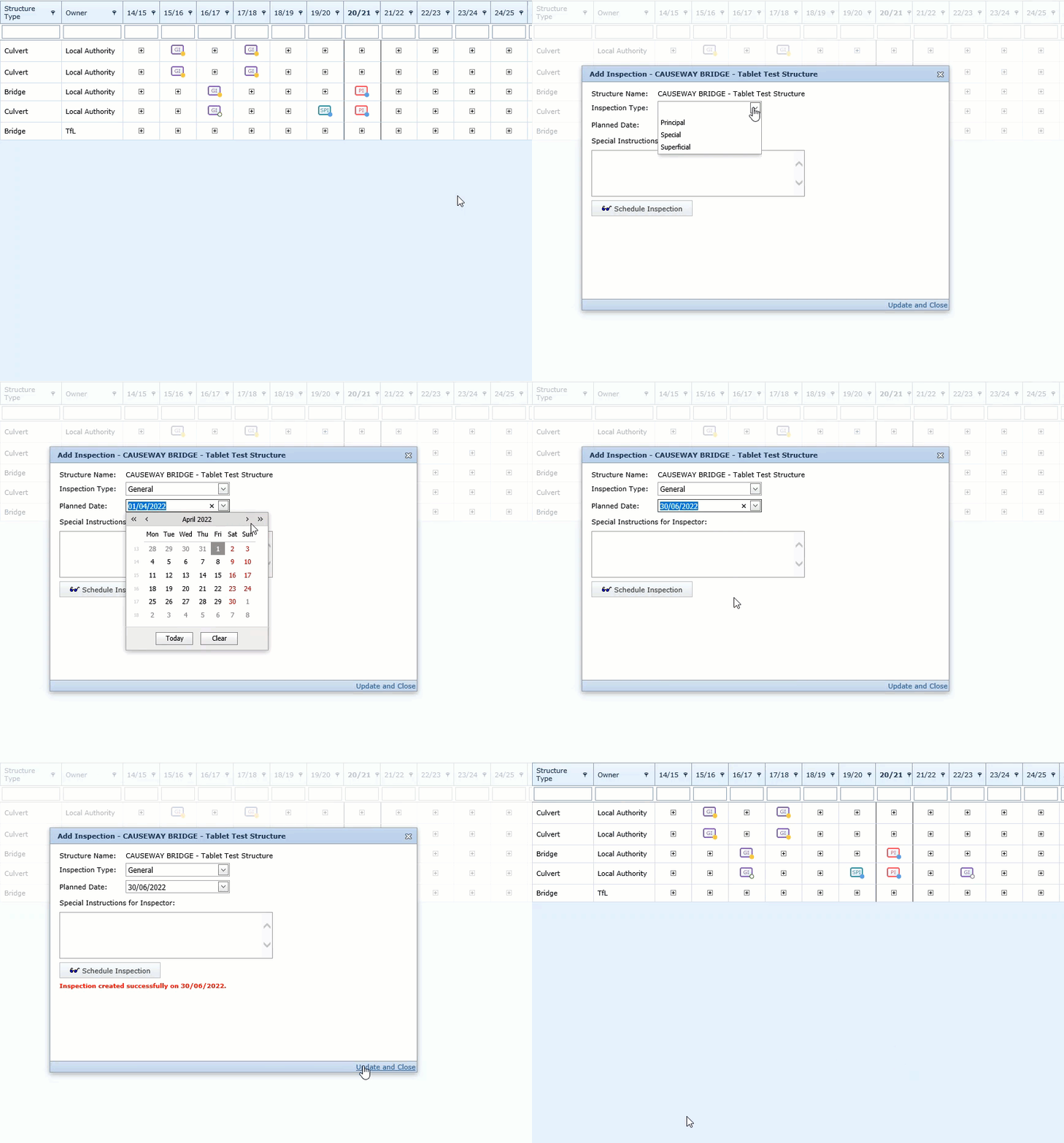
By clicking on an inspection icon you can view, edit a particular structure's inspections for that year. You can also create new inspections and delete unwanted ones.
You can also schedule a new inspection by clicking the
+ icon within a particular cell, selecting the
Inspection Type,
Planned Date and completing
Special Instructions.. if relevant. Click the
Schedule Inspection button, then
Update and Close.
Article ID: 15, Created: 3/23/2010 at 11:29 AM, Modified: 3/23/2021 at 9:51 AM